

3DBug is designed to represent physical spaces, whether real or virtual.
If you choose to display a 3D gaussian splat (ply, splat, or spz file) you will soon notice there is a little camera icon which travels around your 3DBug World according to how you navigate. It is symbolic of the distance travelled within the 3-D space. So how does it know how far to go? That is where the Meaurement Box comes in.
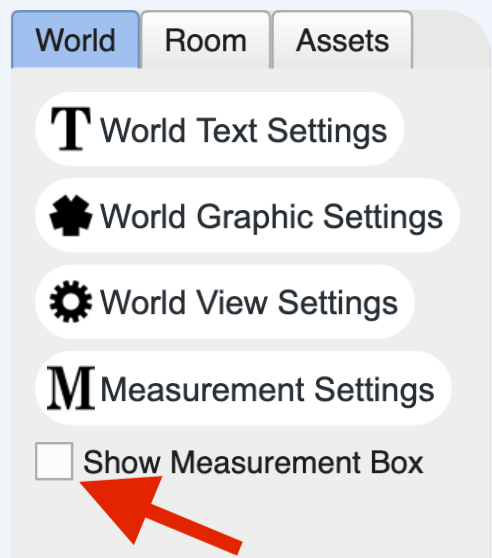
Click the World tab in 3DBug and then click the Show Measurement Box checkbox.
This will result in a grid being overlaid on your world background.
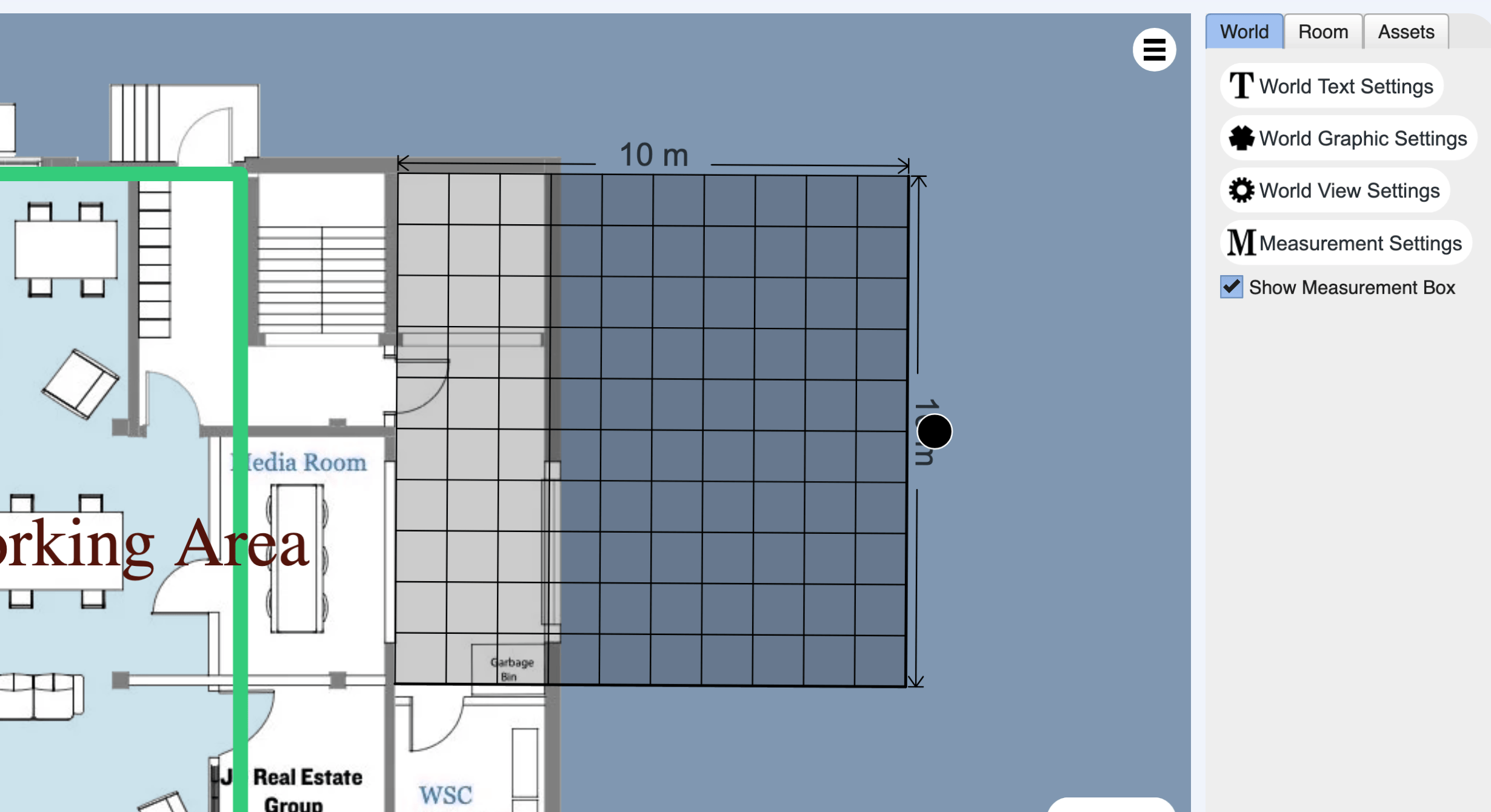
Note that the measurement box has specified measurement labels which only change when you enter new values in the Measurement Settings control panel.
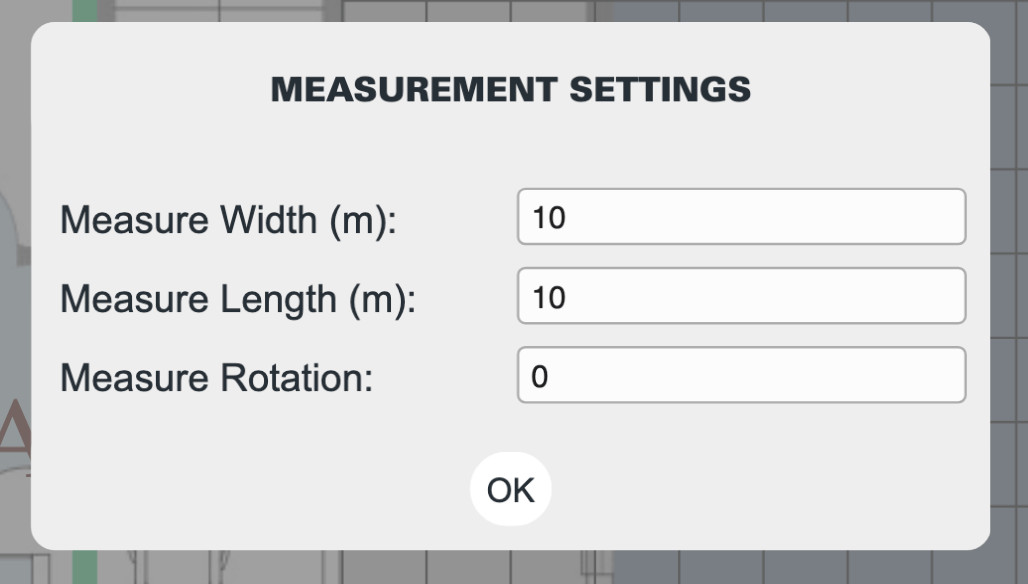
Now you may ask yourself, “Why do the measurement labels not change when I scale the Measurement Box larger or smaller?” It is important to remember that you are not actually measuring the background graphic but you are specifying measurement scaling when you place the box.
The best way to use the box is to identify a known measurement on your floor plan. For example, you might know that a certain area is 6 metres by 5 metres. You would then enter those values into the Measurement Box settings panel and then scale the box so that it matches the known space on the floor plan. This results in 3DBug knowing how far to move the camera icon when you navigate.
The position or rotation of the Measurement box does not affect the camera. Those are only to help you align the box with your background graphic in the best way so that you can scale it in a meaningful way. It is the scale value which achieves the end result.