

An important way to enhance the look of your 3DBug worlds is to use custom fonts.
3DBug can use any fonts which are loaded on your website. It does not provide a way to manage or embed your fonts. It is better to do that from your site template system. Your template may allow you to select a font directly, or it may require you to paste some code in your header which loads the fonts from Google fonts or another font source. An excellent free tool for creating web fonts is FontSquirrel. Please ensure you have the rights to use any fonts you choose to convert and bundle in this way.
When you have the custom fonts working in your site, it is easy to use them within 3DBug. You have two options:
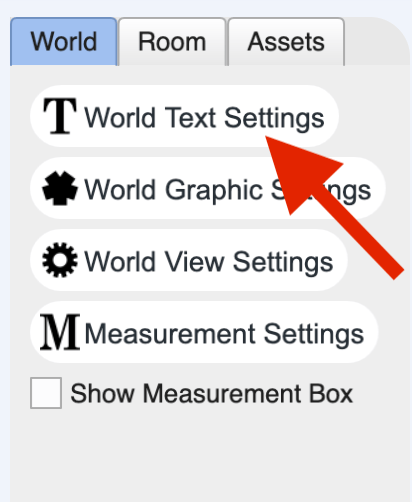
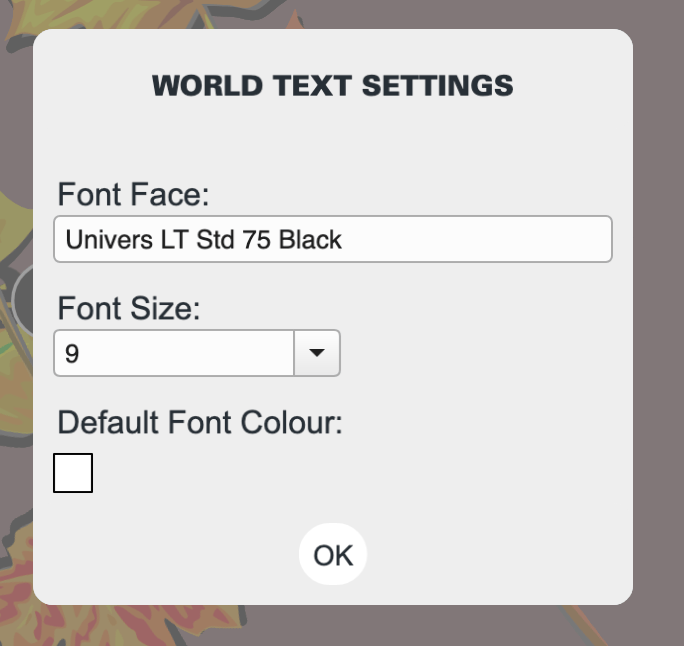
- Specify fonts under the World tab, World Text Settings. Doing this will cause all text labels to use this as a default font.
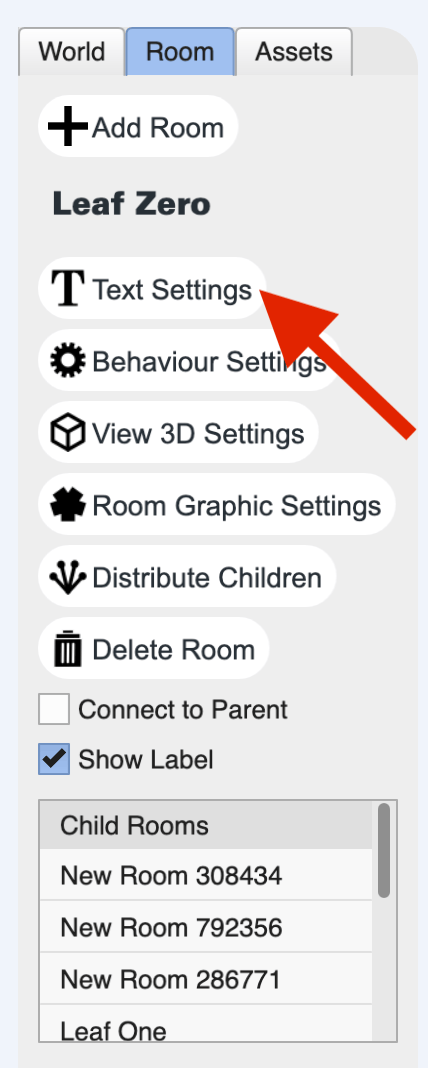
- Specify the font under the Room tab, Text Settings. This will override the World Text Settings, allowing you to have unique font settings for each room.
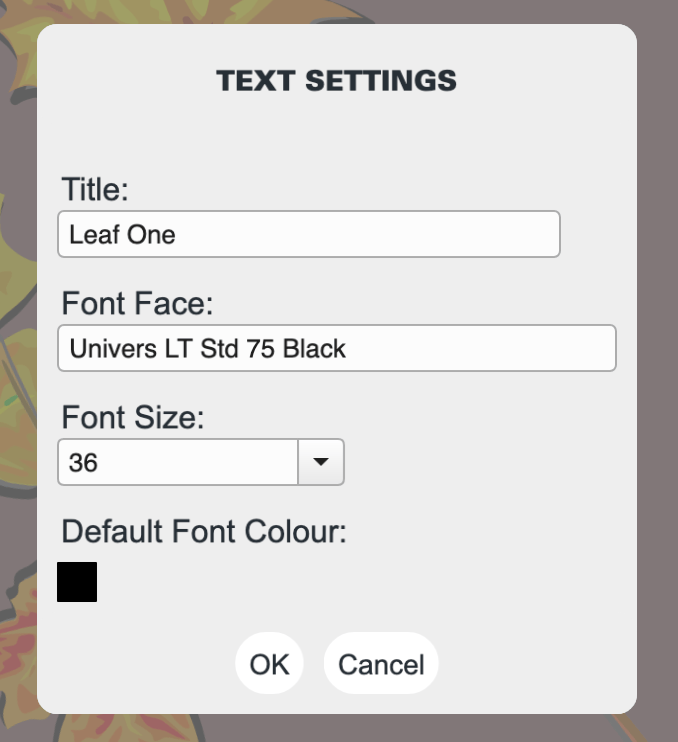
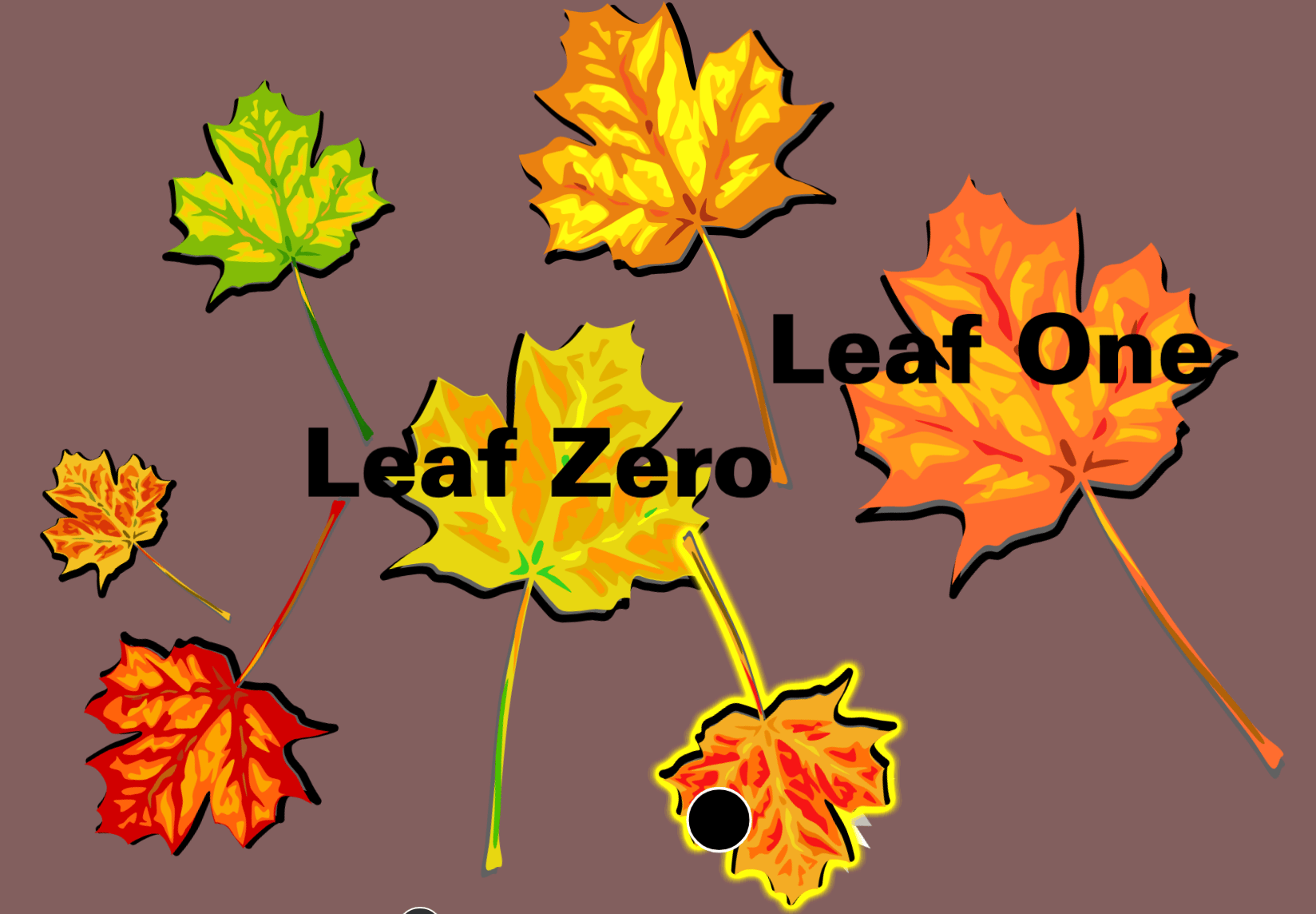
When entering the name for the custom font face, be sure to use the name which you normally see in your computer's font menus. Font names with multiple words will likely have spaces in the name, as shown in the graphics above. If you have chosen the correct name it will automatically render properly after you click OK.
Have fun!