

Test
Documentation
3DBug is a very versatile component and it can be configured in a multitude of ways, and we have big plans for future enhancements. This being the case, it was a challenge to come up with a naming system for the different elements you can add and configure. We settled on the following system.
3DBug is designed to represent physical spaces, whether real or virtual.
If you choose to display a 3D gaussian splat (ply, splat, or spz file) you will soon notice there is a little camera icon which travels around your 3DBug World according to how you navigate. It is symbolic of the distance travelled within the 3-D space. So how does it know how far to go? That is where the Meaurement Box comes in.
Assets are useful tools to annotate areas in a room and link to media without cluttering the initial display of the 3DBug world. They appear on both the 2-D map and within 3-D scenes. When a gaussian splat file is being displayed, you can see other assets in the parent room, allowing you to enact their behaviours from within the 3-D context.
Adding Assets
When you are editing a world as an administrator you must first click your desired Room:
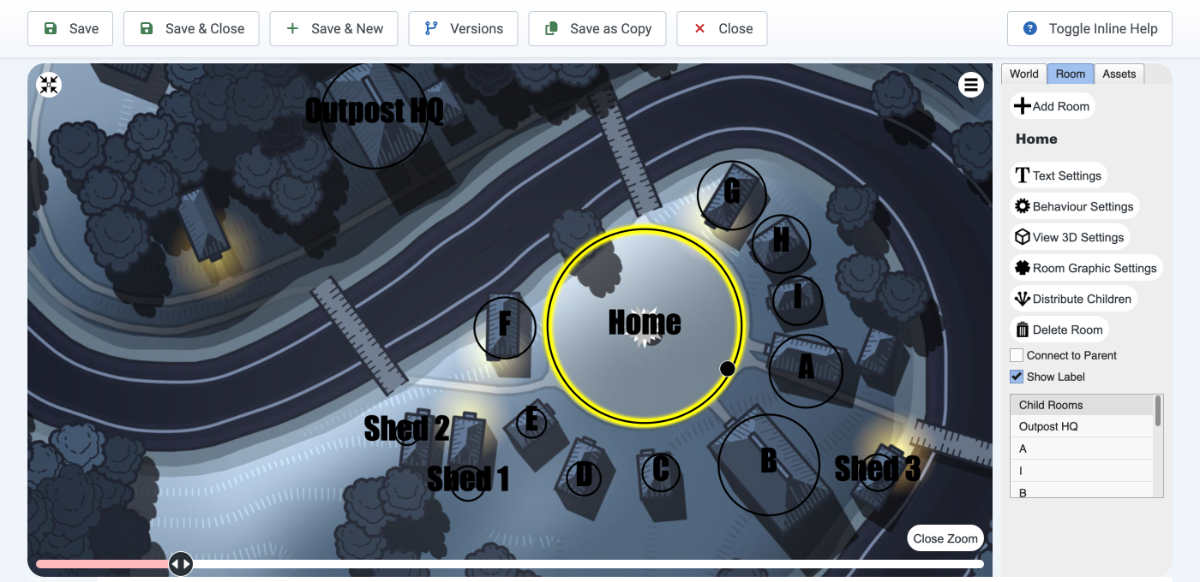
Then click the Assets tab to view the configuration controls. This causes the room to be “focused” and hides the other rooms.
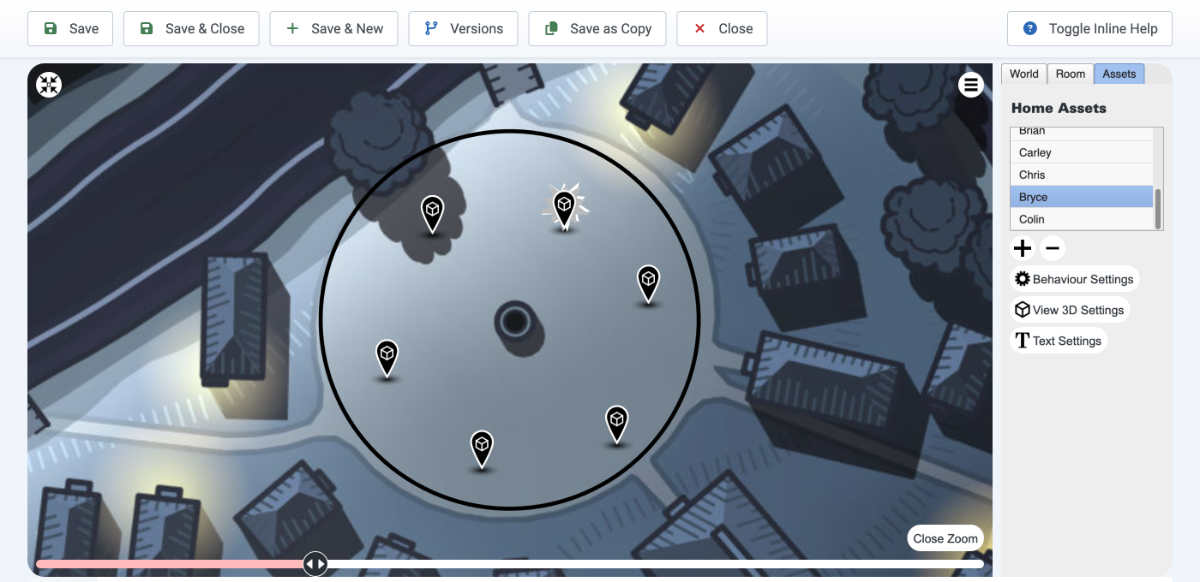
Any assets in the room will become visible on the world map, and they will appear in the list on the right. To add another asset, simply click the + icon and it will appear on the map. You can drag it to the desired position on the map. Change its name by clicking the Text Settings button.
Text Settings
Here you find these inputs:
- Asset Name: This is used for the list on the right and also for the “tool tip” or “callout” rollover behaviour.
- Image URL: This is where you select an image to be used for the “callout” rollover behaviour and the “Popup Small” or “Popup Large”. Simply click the Select Image button to upload and/or link to your desired image. Note: if the image is an SVG file, at the time of this writing it will only appear in a popup, not a callout.
- Details: Enter extended information which will appear in the “callout” rollover behaviour or the “Popup Small” or “Popup Large”.
Behaviour Settings
This is where you control what happens when the user interacts with your asset.
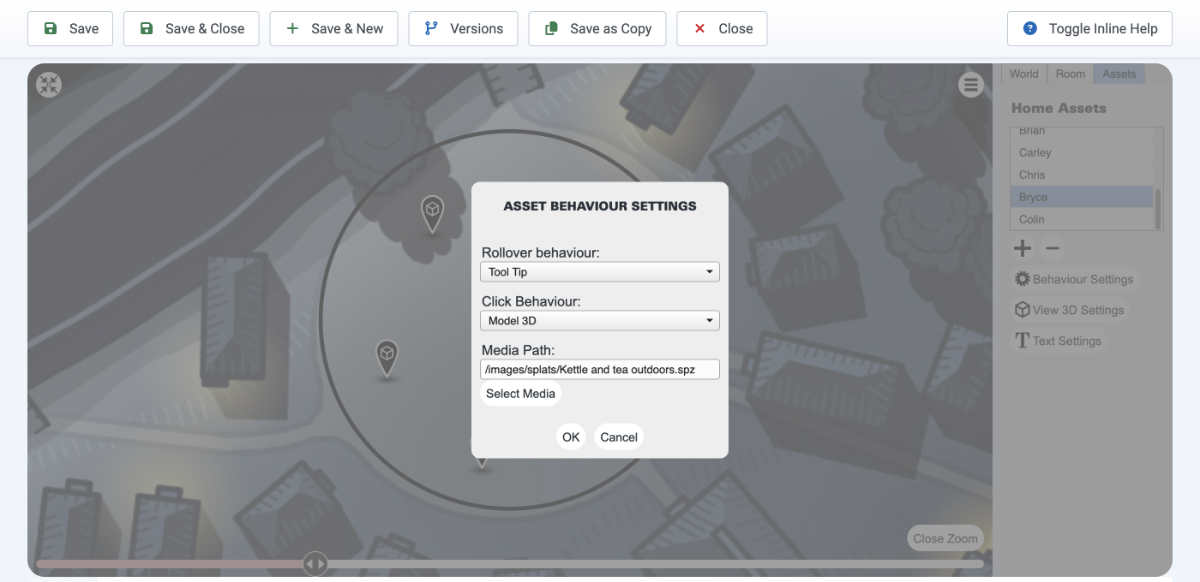
Rollover Behaviour:
An action to perform when a mouse pointer is over the pin. Options are:
- “None”,
- “Tool Tip” (shows a small text label), or
- “Callout” (shows a popup adjacent to the pin)
Click Behaviour:
An action to perform when the user clicks or taps the pin. Options are:
- None
- Audio Player*: Shows a user interface to play back an audio file of your choice. Supported files depend on the user browser.
- Audio Only*: Instantly plays an audio file of your choice without controls. It is best to use a short clip in this case.
- Model 3D*: Summons a panel to display a .glb or .glTF file.
- Popup Small: Opens a small Bootstrap modal containing the content from the Text Settings fields.
- Popup Full: Opens a large Bootstrap modal containing the content from the Text Settings fields.
- Splat 3D*: Summons a panel to display a .3dgs,.ply,.spz,.splat. or .rad file with the option to go full screen.
- Video Player*: Shows a user interface to play back an audio file of your choice. Supported files depend on the user browser.
- Web Link*: Links to the URL of your choice in the same tab.
- Web Link (New Tab)*: Links to the URL of your choice in a new tab.
* Indicates that a selection is required in the Media Path field. Click the Select Media button to upload and select, or simply type a path in the text field.
View 3D Settings
These settings only apply when either “Model 3D” or “Splat 3D” is the chosen Click Behaviour.
Initial Model Rotation
Enter a value in degrees to rotate your 3D media according to a standard compass direction. This can be very useful if your splat scene is not oriented to your world by default. For mesh models, you can rotate them to face in the desired direction. There is not currently a setting equivalent to a forward roll or sideways roll.
Model Vertical Position
This setting is most useful when a mesh model is being displayed inside the gaussian splat model of a room. Enter a value to raise or lower it. The number is roughly equivalent to decimetres, i.e. a value of 10 would be 1 metre.
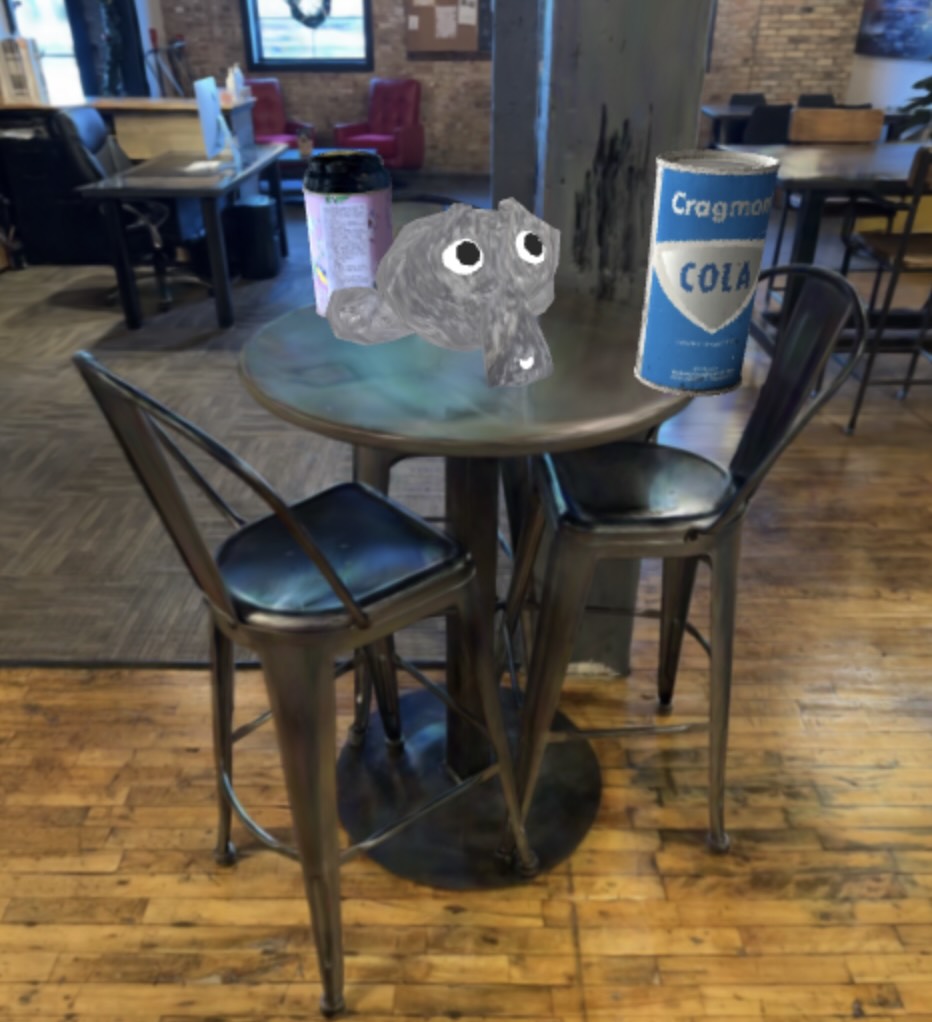
Camera Vertical Position
This setting is most useful when loading a gaussian splat file from an asset link. The setting only applies when either “Model 3D” or “Splat 3D” is the chosen Click Behaviour. Enter a value to raise or lower it.
Action Button Type
This lets you display an action button which overlays on the 3D viewing area. This is useful for linking to content which is relevant to the item being displayed. Options are: "None",
"Popup Small", "Popup Full", "Web Link", "Web Link (New Tab)". Popups summon a modal, which is useful for linking to content within your website without immediately leaving the map page. Pro tip: When linking to a page on your own site, appending the following text to your URL can hide your site template and reduce the HTML to only what the component outputs:
?tmpl=component
This assumes you have not disabled template switching using AdminTools or another tool of course.